What is given?
We normally start off with a ping request to the device. So if we don’t have this device already in our CAM table, we will see it there after the ARP request is done.
Let’s say we want to find a device called PC7 only with the IP address given, 192.168.1.118.
First of all we connect to the core switch in our lab environment and send that ping request.

After pinging the device we made two things clear. We know network connectivity can be established and we should find out which mac address is used by our ip address.

So we copy the mac address 5254.0028.5d26 to notepad for later use.
Now we check the mac address table to see on which port this device is connected to (directly or indirectly).
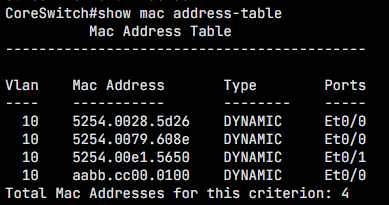
So now we see two things. First we see our mac address which is connected through port Et0/0. But we see as well that there is another mac address connected to port Et0/0, which means there is probably another switch behind this port.
With the command “show cdp neighbors” we check the ports of the connected cisco devices.
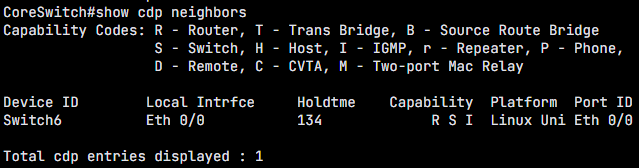
And we see, that indeed Switch6 is connect to port Eth0/0. So now we connect to Switch6 and track that device further down.
We check the mac address table on Switch6.
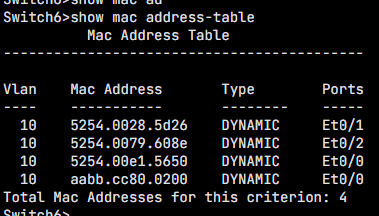
And we see that our target mac address lives on port Eth0/1. We also see that only one device is connected to this port, so there won’t be another switch in between.
Now that we located our device, we change into global configuration mode and change that description of that port, so we easily find that device in the future.
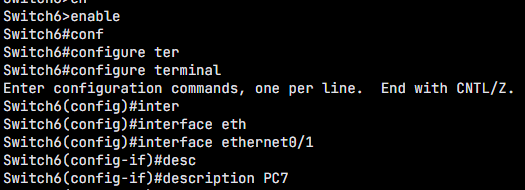
We write our config and we sucessfully tracked down a device in a network!