Prerequisites
To perform this task you need the following:
-
2 Windows Servers running
-
Windows Admin Center instance running
Configuration
On each server we connect through Windows Admin Center or RDP and install the DHCP Role.
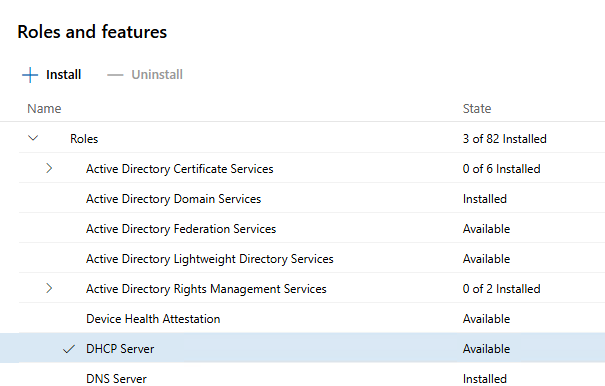
Restart-Service DHCPCode language: PowerShell (powershell)In my case i just restarted the whole server.
After rebooting we have to authorize these servers. We run these commands on both servers:
Add-DhcpServerInDC -DnsName "YourFQDNDC1" -IPAddress YOURIP1
Add-DhcpServerInDC -DnsName "YourFQDNDC2" -IPAddress YOURIP2Code language: PowerShell (powershell)
Another way to authorize a DHCP server is to use an RDP session to “DC1” and authorize the second DHCP server over the DHCP-MMC.
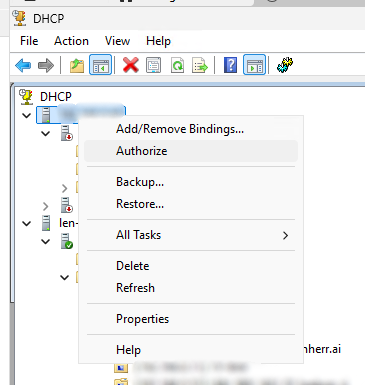
When this is finished for both servers, it is best practise to Restart the DHCP service.
After authorizing the DHCP servers we now want to create a failover partnership between these 2 servers.
There are 2 types of modes of partnerships:
- Load Balance (Default): Load balance mode is the default mode of deployment. In this mode servers simultaneously serve IP addresses and options to clients on a given subnet. DHCP client requests are load balanced and shared between the two DHCP servers.
- Hot Standby: in a Hot Standby configuration there is only one of the servers active and leasing IP-addresses. The other one is in idle mode with responsability to issue leases to DHCP clients only of the active server becomes unavailable.
For my environment I want to use the Hot Standby mode so my PowerShell cmdlets are as follwos:
$scope = Get-DhcpServerv4Scope -ComputerName "DC1" | Select-Object -First 1

Add-DhcpServerv4Failover -ComputerName "DC1" `
    -Name "AD01-AD02-Failover" `l
    -PartnerServer "DC2" `
    -ScopeId $scope.ScopeId `
    -ServerRole Standby `
    -SharedSecret "SHAREDSECRET" `
    -ForceCode language: PowerShell (powershell)
To configure this for load balance, just delete the “ServerRole” parameter.
In my case this commands did not work over the WAC, because of the “Double Hop” problematic. THe “Double Hop” problematic describes the following problem. When I run this command inside the Windows Admin Center, I am connecting through WAC Gateway to my “DC1” (here my credentials do work but when I now runn the second command, the “DC1” tries to reach out to “DC2” and is doing another hop. These “Double Hops” are by default not allowed by Windows security.
Testing
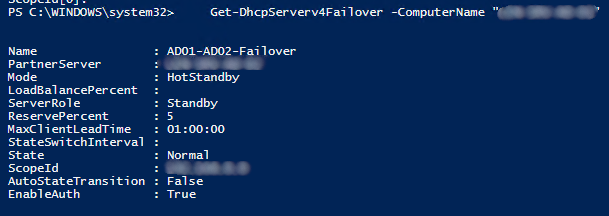
To check if the partnership was created successfully and to view its current health we can use the following method.
Get-DhcpServerv4Failover -ComputerName "DC1"Code language: PowerShell (powershell)The output should show something like this.