State configuration (DSC)
Prerequisites
To work with DSC you have to have an automation account first.
To create an automation account, go to your Azure portal and search for Automation Account and create one.
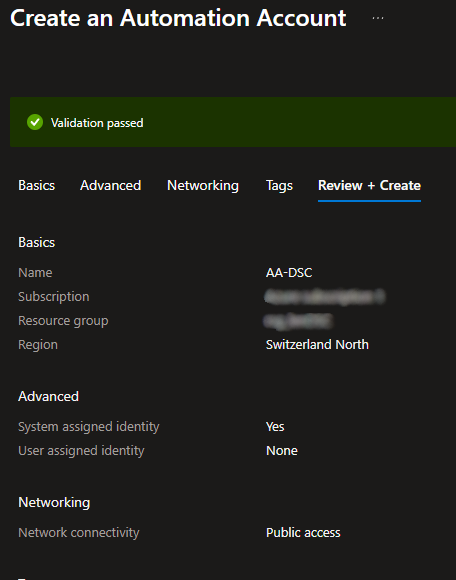
Note: because State configuration gets retired on September 2027 the functionality is already locked down.
the configuration file
Now we create the actual configuration file. We open the cloud shell in the top right corner and create a new file and edit it.
code WSUSConfig.ps1Code language: PowerShell (powershell)Configuration WSUSConfig
{
Import-DscResource -ModuleName 'PSDesiredStateConfiguration'
Node "localhost"
{
WindowsFeature WSUS
{
Ensure = "Present"
Name = "UpdateServices"
}
}
}Code language: PowerShell (powershell)Earlier you could upload your configuration file through the GUI. Under your Automation Account you could go to Configuration Management -> State configuration (DSC) -> Configurations -> Add
This function is already deprecated and no longer available.
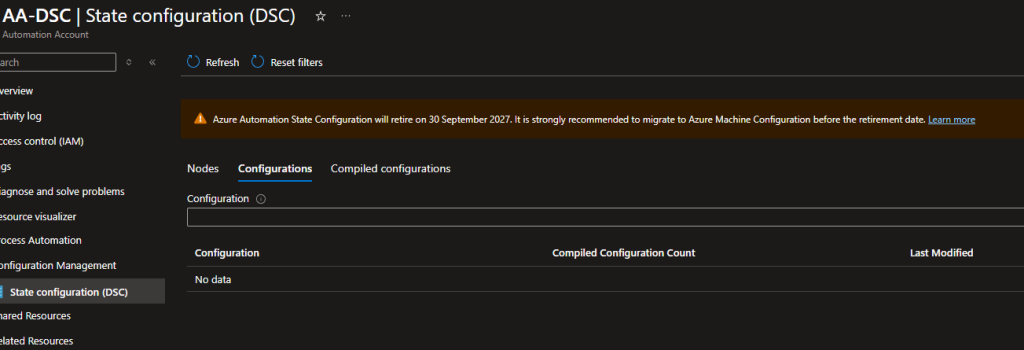
Instead we do it all over the Cloud Shell. Open your Cloud Shell again and import your configuration file.
Import-AzAutomationDscConfiguration `
    -AutomationAccountName "AA-DSC" `
    -ResourceGroupName "YourResourceGroup" `
    -SourcePath "./WSUSConfig.ps1" `
    -Published `
    -ForceCode language: PowerShell (powershell)
If it succeeded you see an output like this
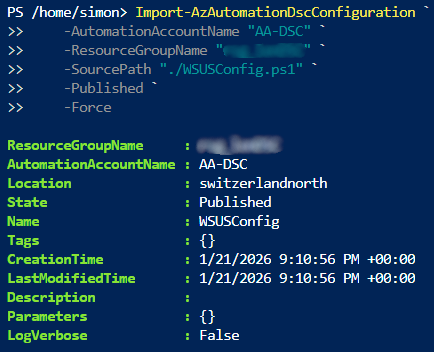
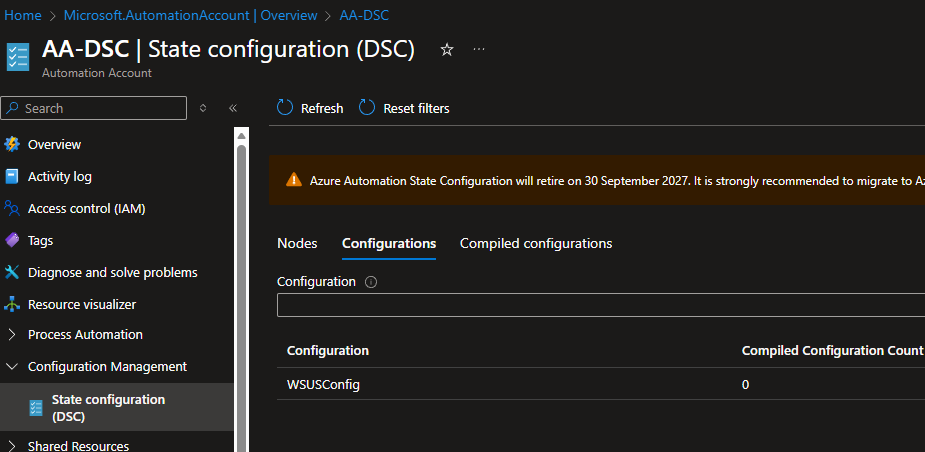
If you check your configurations again in the Azure portal you should see your configuration uploaded now.
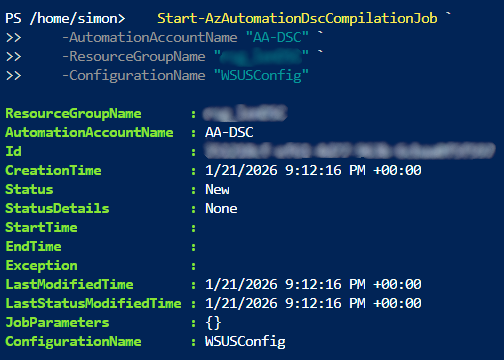
After importing your config, we now compile it.
    Start-AzAutomationDscCompilationJob `
    -AutomationAccountName "AA-DSC" `
    -ResourceGroupName "YourResourceGroup" `
    -ConfigurationName "WSUSConfig"Code language: PowerShell (powershell)
Again the output if it succeeded:
Testing
To test this feature we have to assign this configuration a server of ours. Earlier this was possible over the GUI, now we still can achieve this in the Cloud Shell.
For Azure native VMs
   Register-AzAutomationDscNode `
    -AutomationAccountName "AA-DSC" `
    -ResourceGroupName "YourResourceGroup" `
    -AzureVMName "WSUS-Server01" `
    -NodeConfigurationName "WSUSConfig.localhost" `
    -ConfigurationMode "ApplyAndMonitor"Code language: PowerShell (powershell)
For Azure Arc Vms
# --- CONFIGURATION ---
$ArcMachineName       = "Servername"      # Replace with your Arc Machine Name
$ArcResourceGroup     = "YourARcResourceGroup"   # Replace with Arc Machine's Resource Group
$AutomationAccount    = "AA-DSC"                 # Your Automation Account Name
$AutomationRG         = "YourResourceGroup"      # Automation Account's Resource Group
$NodeConfigName       = "WSUSConfig.localhost"   # The compiled config name

# --- 1. Get Registration Key & URL from Automation Account ---
$RegInfo = Get-AzAutomationRegistrationInfo `
    -ResourceGroupName $AutomationRG `
    -AutomationAccountName $AutomationAccount

# --- 2. Get the Location of your Arc Machine ---
$ArcMachine = Get-AzConnectedMachine -Name $ArcMachineName -ResourceGroupName $ArcResourceGroup
$Location   = $ArcMachine.Location

# --- 3. Define the Extension Settings ---
# These settings tell the extension where to register and which config to pull
$Settings = @{
    "WmfVersion" = "latest"
    "Privacy" = @{
        "DataCollection" = "Enable"
    }
    "Properties" = @{
        "RegistrationUrl" = $RegInfo.Endpoint
        "NodeConfigurationName" = $NodeConfigName
        "ConfigurationMode" = "ApplyAndMonitor"
        "RefreshFrequencyMins" = 30
        "RebootNodeIfNeeded" = $true
    }
}

# Protected settings keep your key safe
$ProtectedSettings = @{
    "Properties" = @{
        "RegistrationKey" = @{
            "UserName" = "PLACEHOLDER_DONOTUSE"
            "Password" = $RegInfo.PrimaryKey
        }
    }
}

# --- 4. Install the DSC Extension on the Arc Server ---
New-AzConnectedMachineExtension `
    -Name "DSC" `
    -ResourceGroupName $ArcResourceGroup `
    -MachineName $ArcMachineName `
    -Location $Location `
    -Publisher "Microsoft.Powershell" `
    -ExtensionType "DSC" `
    -Settings $Settings `
    -ProtectedSettings $ProtectedSettingsCode language: PowerShell (powershell)
I tried to push the configuration to my WSUS-Arc enabled server but it failed. The problem here was that Microsoft is aggressively retiring the State configuration (DSC) feature and already deprecating things in certain regions. So for my region “switzerlandnorth” it is already only possible to work with the new feature Azure Machine Configuration.